The Pawn module allows you to create different characters (also called Pawns throughout the article), animate them, move them, and if the collision part is activated, detect if they collide with the background. In this article we will learn how to create these animations but without using the collision part. Only the animations.
In the article State Machine. Animating Sprites we had already discussed how to create animations while taking into account a state machine. In this article we will use the MSXgl library already created for this purpose and which simplifies its creation and modification.
The sprites of the Pawn module are designed for MSX1, but with a small piece of code, we can also use the multicolor sprites that were used in the article State Machine. Animating Sprites. The new sprites have also been created using SEV9938 which is explained in the mentioned article, but the script Sev9338_a_C.py has been modified so that now by passing the --msxgl parameter it creates the .h file with the sprite information for the library structure and by putting --fusion-c we have the same format we had before.
Each Pawn is made up of these structures:
Pawn_Sprite: This structure has the X,Y position of the sprite, the offset that the sprite has in the animation, the color (in case of MSX1 sprites) and a Flag parameter that can take values PAWN_SPRITE_OR which is used in the example s_game.c from the library, PAWN_SPRITE_ODD skips the even frames of the animation, only painting the odd ones, and PAWN_SPRITE_EVEN which does the opposite, showing only the even ones and not painting them on the odd ones.Pawn_Frame: We define how many frames the animation will be made of, the sequence. The first is the pattern identifier, which matches the index that appears in the openMSX Sprite Debugger, the second is the duration, if we have that the MSX refresh is 60 Hz, if we want it to last one second, we will have to set it to 60; finally the third parameter is a callback to call a function that is called on each frame.Pawn_Action: This structure will have the definition of all the animations that a Pawn has. It has as parameters, the Pawn_Frames that we defined before, the number of frames of each animation, if it has loop and if it can be interrupted. If it has loop it starts again and if not when the whole sequence ends it returns to state 0 of the animation list, the first element of Pawn_Actions. If the animation can be interrupted, when a Pawn_SetAction() is done with a new animation it will be executed immediately, interrupting the other one, and if it cannot be interrupted, it will be ignored. So for example, a walking animation can be interrupted to jump or do another animation, but a dying one, for example, cannot be interrupted.Once we have seen all the structures, let's see what the Joe animation would look like for example. Once the patterns are loaded into the VDP, we have this structure:
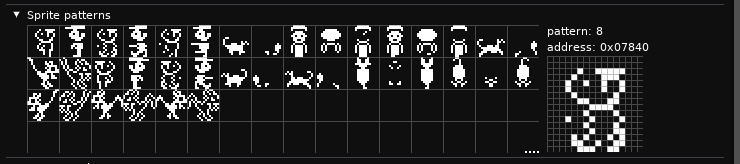
With which we define the code:
 47// Pawn sprite layers
 48const Pawn_Sprite g_SpriteLayers[] =
 49{//   X  Y  Pattern Color            Option
 50	{ 0, 0, 0,      COLOR_BLACK,     0 },
 51	{ 0, 0, 4,      COLOR_WHITE,     0 },
 52};
 53
 …

 64// Idle animation frames
 65const Pawn_Frame g_FramesIdle[] =
 66{ //  Pattern Time Function
 67	{ 0*8, 60, NULL }, // Standing pose 1 // El 8 és perquè l'sprite és de 2 elements? En el s_game utilitza múltiples de 16 i és de 3 capes
 68	{ 1*8, 60, NULL }, // Standing pose 2 (slight variation)
 69	{ 0*8, 60, NULL }, // Back to pose 1
 70	{ 2*8, 30, NULL }, // Blink or small movement
 71};
 72
 73// Move animation frames
 74const Pawn_Frame g_FramesMove[] = {
 75  // ID, Duration, callback event
 76  // Aquest Id és el número de l'sprite de 0-256 dins els aptrons
 77	{ 0*8, 8, NULL }, // Walk frame 1
 78	{ 1*8, 8, NULL }, // Walk frame 2
 79};
 80
 81// Move animation frames
 82const Pawn_Frame g_FramesMove_Right[] = {
 83    {72, 8, NULL}, // Walk frame 1
 84    {80, 8, NULL}, // Walk frame 2
 85};
 86
 …

142// Actions id
143enum ANIM_ACTION_ID {
144  ACTION_IDLE = 0,
145  ACTION_MOVE,
146  ACTION_MOVE_RIGHT,
147  ACTION_JUMP,
148  ACTION_FALL,
149  ACTION_DOWN,
150  ACTION_UP,
151};
152
153// List of all player actions
154const Pawn_Action g_AnimActions[] = {
155    //  Frames        Number                  Loop? Interrupt?
156    {g_FramesIdle, numberof(g_FramesIdle), TRUE, TRUE},
157    {g_FramesMove, numberof(g_FramesMove), TRUE, TRUE},
158    {g_FramesMove_Right, numberof(g_FramesMove_Right), TRUE, TRUE},
159    {g_FramesJump, numberof(g_FramesJump), TRUE, TRUE},
160    {g_FramesFall, numberof(g_FramesFall), TRUE, TRUE},
161    {g_FramesDown, numberof(g_FramesDown), TRUE, TRUE},
162    {g_FramesUp, numberof(g_FramesUp), TRUE, TRUE},
163};
164
In lines 47-51 we define how many sprite patterns our character will be made of for the animations, which in this case is 2 without offset in the X,Y coordinates. The first pattern is located at 0 and the second at 4 patterns beyond what is indicated in the animations. The color is irrelevant, since we will repaint it later and the options too.
Joe's movement will be made up of the first 4 patterns of the pattern scheme which is the left movement, and by 72, 76, 80 and 84 for the right movement. I have created the idle animation with many frames to be able to see its behavior better.
So in lines 64-71 we define the idle animation that will be made up of frames that start their pattern at 0, 8, 0 and 16. The first frame will take patterns 0 and 4 due to the definition on line 48, the second frame patterns 8 and 12, then it will return to 0 and 4 to end with a different movement with patterns 16 and 20.
Now we need to define all the animations we will have. Here I have also defined others that were in the example s_game.c to be able to have a long list.
Once we have the list of animations we create the Pawn_Action indicating the name of the structure of each animation following the order defined on line 143.
Once we have seen the theory of how to create Pawns with their animations, let's apply it in a C program, but let's complicate it a bit more by adding two more Pawns and making them multicolor MSX2.
  9//=============================================================================
 10// INCLUDES
 11//=============================================================================
 12#include "color.h"
 13#include "core.h"
 14#include "input.h"
 15#include "game/state.h"
 16#include "game/pawn.h"
 17#include "print.h"
 18#include "vdp.h"
 19//=============================================================================
 20// DEFINES
 21//=============================================================================
 22
 23// Physics values
 24#define FORCE		24
 25#define GRAVITY		1
 26#define GROUND		192
 27
 28// Library's logo
 29#define MSX_GL "\x02\x03\x04\x05"
 30
 31// Function prototypes
 32bool State_Initialize();
 33bool State_Game();
 34bool State_Pause();
 35
 36//=============================================================================
 37// READ-ONLY DATA
 38//=============================================================================
 39
 40// Font
 41#include "font/font_mgl_sample8.h"
 42#include "Bricks_sprites_msxgl.h"
 43
We start the program by putting all the includes we will use and the constants used in the program. In lines 32 to 35 we define the functions so we don't have to worry about the order in which we define them later. We include font/font_mgl_sample8.h so we can also test the screen writing part of the library, and here we load the font, if we want another type, we just need to change it here. In line 42 we load the header generated with the script that converts the SEV9938 file, from which we have cut out the sprites, palettes and other extra information that we don't use, leaving only the sprites that are not 0, the palette we will use and the index_mask vector with the colors and masks used by the different sprite patterns.
 47// Pawn sprite layers
 48const Pawn_Sprite g_SpriteLayers[] =
 49{//   X  Y  Pattern Color            Option
 50	{ 0, 0, 0,      COLOR_BLACK,     0 },
 51	{ 0, 0, 4,      COLOR_WHITE,     0 },
 52};
 53
 54const Pawn_Sprite g_SamLayers[] = {
 55  {0, 0, 0, COLOR_BLACK, 0},   // El tercer paràmetre és l'offset que després s'utilitza quan fas les animacions
 56  {0, 0, 4, COLOR_BLACK, 0},
 57};
 58
 59const Pawn_Sprite g_SquirrelLayers[] = {
 60  {0, 0, 0, COLOR_BLACK, 0},
 61  {0, 0, 4, COLOR_BLACK, 0},
 62};
 63
 64// Idle animation frames
 65const Pawn_Frame g_FramesIdle[] =
 66{ //  Pattern Time Function
 67	{ 0*8, 60, NULL }, // Standing pose 1 // El 8 és perquè l'sprite és de 2 elements? En el s_game utilitza múltiples de 16 i és de 3 capes
 68	{ 1*8, 60, NULL }, // Standing pose 2 (slight variation)
 69	{ 0*8, 60, NULL }, // Back to pose 1
 70	{ 2*8, 30, NULL }, // Blink or small movement
 71};
 72
 73// Move animation frames
 74const Pawn_Frame g_FramesMove[] = {
 75  // ID, Duration, callback event
 76  // Aquest Id és el número de l'sprite de 0-256 dins els aptrons
 77	{ 0*8, 8, NULL }, // Walk frame 1
 78	{ 1*8, 8, NULL }, // Walk frame 2
 79};
 80
 81// Move animation frames
 82const Pawn_Frame g_FramesMove_Right[] = {
 83    {72, 8, NULL}, // Walk frame 1
 84    {80, 8, NULL}, // Walk frame 2
 85};
 86
 87// Jump animation frames
 88const Pawn_Frame g_FramesJump[] =
 89{
 90	{ 4*8, 12, NULL }, // Jump preparation
 91	{ 5*8, 8, NULL }, // Jump peak
 92	{ 6*8, 8, NULL }, // Jump extension
 93};
 94
 95// Fall animation frames
 96const Pawn_Frame g_FramesFall[] =
 97{
 98	{ 5*8, 8, NULL }, // Fall pose 1
 99	{ 6*8, 8, NULL }, // Fall pose 2
100};
101
102// Down animation frames
103const Pawn_Frame g_FramesDown[] = {
104  {44, 8, NULL},
105  {32, 8, NULL},
106};
107
108// Up animation frames
109const Pawn_Frame g_FramesUp[] = {
110  {36, 8, NULL},
111  {48, 8, NULL},
112};
113
114// Animacions Sam
115const Pawn_Frame g_FramesSamLeft[] = {
116  {88, 8, NULL},
117  {96, 8, NULL},
118};
119const Pawn_Frame g_FramesSamRight[] = {
120  {24, 8, NULL},
121  {56, 8, NULL},
122};
123const Pawn_Frame g_FramesSamUp[] = {
124  {104, 8, NULL},
125  {108, 8, NULL},
126};
127const Pawn_Frame g_FramesSamDown[] = {
128    {116, 8, NULL},
129    {120, 8, NULL},
130};
131
132// Animacions Squirrel
133const Pawn_Frame g_FramesSquirrelLeft[] = {
134  {136, 8, NULL},
135  {128, 8, NULL},
136};
137const Pawn_Frame g_FramesSquirrelRight[] = {
138  {64, 8, NULL},
139  {144, 8, NULL},
140};
141
We now move on to define the different layers and animations of the different Pawns. All our Pawns are made up of two layers that will always be continuous, which is why all the definitions (lines 48-59) have 0 and 4 as the third parameter, since they are 16x16 sprites and each one uses 4 patterns.
I would like to highlight that Joe's up and down movements (lines 103-112) share a common layer, as we explain in the following image (the common part is circled in green):
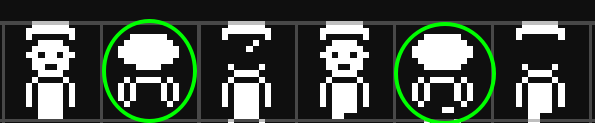
And therefore when we define the animations, the one looking up starts with the inner part and when looking down with the surrounding ones. In this way we save 2 patterns that would be identical with just an adequate ordering.
It must be taken into account when defining the order of the layers that if there are colors generated through the overlapping of layers using OR, the color that indicates this bit must be at a higher index, or equivalent to the upper layers of the Pawn_Frame (high indexes in the structure array).
142// Actions id
143enum ANIM_ACTION_ID {
144  ACTION_IDLE = 0,
145  ACTION_MOVE,
146  ACTION_MOVE_RIGHT,
147  ACTION_JUMP,
148  ACTION_FALL,
149  ACTION_DOWN,
150  ACTION_UP,
151};
152
153// List of all player actions
154const Pawn_Action g_AnimActions[] = {
155    //  Frames        Number                  Loop? Interrupt?
156    {g_FramesIdle, numberof(g_FramesIdle), TRUE, TRUE},
157    {g_FramesMove, numberof(g_FramesMove), TRUE, TRUE},
158    {g_FramesMove_Right, numberof(g_FramesMove_Right), TRUE, TRUE},
159    {g_FramesJump, numberof(g_FramesJump), TRUE, TRUE},
160    {g_FramesFall, numberof(g_FramesFall), TRUE, TRUE},
161    {g_FramesDown, numberof(g_FramesDown), TRUE, TRUE},
162    {g_FramesUp, numberof(g_FramesUp), TRUE, TRUE},
163};
164
165// Accions Sam
166// Actions id
167enum ANIM_SAM_ACTION_ID {
168  ACTION_SAM_LEFT = 0,
169  ACTION_SAM_RIGHT,
170  ACTION_SAM_DOWN,
171  ACTION_SAM_UP,
172};
173
174// List of all player actions
175const Pawn_Action g_AnimSamActions[] = {
176    //  Frames        Number                  Loop? Interrupt?
177    {g_FramesSamLeft, numberof(g_FramesSamLeft), TRUE, TRUE},
178    {g_FramesSamRight, numberof(g_FramesSamRight), TRUE, TRUE},
179    {g_FramesSamDown, numberof(g_FramesSamDown), TRUE, TRUE},
180    {g_FramesSamUp, numberof(g_FramesSamUp), TRUE, TRUE},
181};
182
183// Accions Squirrel
184// Actions id
185enum ANIM_SQUIRREL_ACTION_ID {
186  ACTION_SQUIRREL_LEFT = 0,
187  ACTION_SQUIRREL_RIGHT,
188};
189
190// List of all squirrel actions
191const Pawn_Action g_AnimSquirrelActions[] = {
192    //  Frames        Number                  Loop? Interrupt?
193    {g_FramesSquirrelLeft, numberof(g_FramesSquirrelLeft), TRUE, TRUE},
194    {g_FramesSquirrelRight, numberof(g_FramesSquirrelRight), TRUE, TRUE},
195};
Finally, there remains the part of defining all the animations and creating their corresponding Pawn_Action array.
Then we define all the global variables to control the movement of the Pawns and initialize the application in the State_Initialize() function.
Once we have defined all the animations, it remains to put them into the game logic and initialize all the values, this is what we will do in the following function:
257bool State_Initialize()
258{
259	// Initialize display
260	VDP_EnableDisplay(FALSE);
261	VDP_SetColor(COLOR_BLACK);
262
263  // Netegem la primera pàgina, tota, ja que hi ha restes de dades de sprites
264  VDP_FillVRAM_16K(0, 0, 0x7FFF);
265
266	// Initialize sprite
267	VDP_SetSpriteFlag(VDP_SPRITE_SIZE_16);
268	// VDP_LoadSpritePattern(g_DataSprtLayer, 0, 13*4*4);
269	VDP_LoadSpritePattern(Sprites, 0, sizeof(Sprites) / 8);
270  VDP_DisableSpritesFrom(3);
271
272  // Init player pawn
273	Pawn_Initialize(&g_PlayerPawn, g_SpriteLayers, numberof(g_SpriteLayers), 0, g_AnimActions);
274	Pawn_SetPosition(&g_PlayerPawn, 16, 16);
275
276  // Init Sam pawn
277	Pawn_Initialize(&g_SamPawn, g_SamLayers, numberof(g_SamLayers), 2, g_AnimSamActions); // L'sprite ID és el que fa que es solapin, abans de 2 hi havia un 1 i és el que col·lapsava
278	Pawn_SetPosition(&g_SamPawn, 64, 64);
279
280  // Init Squirrel pawn
281	Pawn_Initialize(&g_SquirrelPawn, g_SquirrelLayers, numberof(g_SquirrelLayers), 4, g_AnimSquirrelActions);
282	Pawn_SetPosition(&g_SquirrelPawn, 112, 112);
283
284  /* // Initialize text */
285  Print_SetBitmapFont(g_Font_MGL_Sample8);
286
287  for (u8 k=0;k<13;k++) {
288    Print_DrawLineH(k * 10, 15 + k * 15, 20);
289    Print_SetPosition(k * 10, k * 16);
290    Print_DrawText("MoltSXalats");
291  }
292
293  // Set Palette
294  VDP_SetPalette(BRICKS);
295
296  VDP_SetColor2(0, 15);
297	VDP_EnableDisplay(TRUE);
298
299	Game_SetState(State_Game);
300	return FALSE; // Frame finished
301}
We start by hiding the screen so there are no flickers with all the changes we are making. Line 261 sets the text and background color. Then we clean the entire first page of VRAM, thus erasing any traces that might be in memory, and since sometimes we don't use all the patterns, this way unwanted sprites won't appear.
Then we indicate that we will use 16x16 sprites with the command VDP_SetSpriteFlag(VDP_SPRITE_SIZE_16) and on line 269 we load all our patterns defined in the header file obtained through the Python script from the drawings made using SEV9938, Sprites is the name of the array that contains this information.
Between lines 272-282 we initialize the 3 Pawns that we will use in this application. For each one we have to call the Pawn_Initialize() function which receives as first parameter the Pawn structure that we have created as a global variable and that sdcc will take care of reserving the memory, then the array indicating how many sprites there are in each Pawn, the third parameter is the size of this array, the fourth is the visible plane that the first of these sprites will occupy, the others will go to consecutive planes. Remember that the maximum number of visible sprites in MSX2 is 32. And finally, the last parameter which is the Pawn_Action structure that contains the list of all animations.
Notice that for Sam, the visible plane number to use we have indicated to be 2, since Joe starts at 0 and is made up of two sprites and therefore will occupy the first two planes, 0 and 1. Following this logic, the third Pawn will start at plane 4, since Sam also uses two sprites.
On line 285 we indicate the name of the font that we will use to write to the game screen. This is the name that is defined in the font include. MSXgl can paint letters with different techniques that are specified in the PRINT MODULE section of the msxgl_config.h file and that in this case we have said to be bitmap (so it works for Screen 5) and to be in memory, being able to draw lines and squares and the printf format.
Next we create a loop to paint 14 horizontal lines and the name MoltSXalats on the screen.
We load the sprite palette on line 294. This palette is the one we obtained in the header file from SEV9938.
We finish the function by setting the background black and the text white, activate the screen and indicate to the library's state machine that we are in the state of the State_Game function.
308bool State_Game()
309{
310// VDP_SetColor(COLOR_DARK_GREEN);
311	// Update player animation & physics
312	u8 act = ACTION_IDLE;
313	if (g_bMoving)
314    act = ACTION_MOVE;
315  else if (g_bMoving_Right)
316    act = ACTION_MOVE_RIGHT;
317  else if (g_bMoving_Down)
318    act = ACTION_DOWN;
319  else if (g_bMoving_Up)
320    act = ACTION_UP;
321	Pawn_SetAction(&g_PlayerPawn, act);
322	// Pawn_SetMovement(&g_PlayerPawn, g_DX, g_DY);
323	Pawn_Update(&g_PlayerPawn);
324	Pawn_Draw(&g_PlayerPawn);
325
326	// Update Sam animation & physics
327	u8 samAct = ACTION_SAM_LEFT; // Default action
328	if (g_bSamMoving_Left)
329		samAct = ACTION_SAM_LEFT;
330	else if (g_bSamMoving_Right)
331		samAct = ACTION_SAM_RIGHT;
332	else if (g_bSamMoving_Down)
333		samAct = ACTION_SAM_DOWN;
334	else if (g_bSamMoving_Up)
335		samAct = ACTION_SAM_UP;
336        Pawn_SetAction(&g_SamPawn, samAct);
337  Pawn_SetAction(&g_SamPawn, samAct);
338	Pawn_Update(&g_SamPawn);
339	Pawn_Draw(&g_SamPawn);
340
341	// Update Squirrel animation & physics
342	u8 squirrelAct = ACTION_SQUIRREL_LEFT; // Default action
343	if (g_bSquirrelMoving_Left)
344		squirrelAct = ACTION_SQUIRREL_LEFT;
345	else if (g_bSquirrelMoving_Right)
346		squirrelAct = ACTION_SQUIRREL_RIGHT;
347	Pawn_SetAction(&g_SquirrelPawn, squirrelAct);
348	Pawn_Update(&g_SquirrelPawn);
349	Pawn_Draw(&g_SquirrelPawn);
The State_Game function contains the main game loop. The first thing it does is check the movements of the different pawns to indicate which animation they are in. Lines 312-325 define Joe's movement, which has the idle movement as default unless a different one is specified, which is what the entire if block in this part does. Once we have determined what the action is, we set it in the Pawn on line 321 and mark the change with Pawn_Update to finally indicate that it can be redrawn with Pawn_Draw.
In block 325-339 we do the same for Sam. And finally the simplest of all since it only has two sequences, the squirrel, on lines 342-349.
358  indexmascara = calcPatro / 4 * 16;
359  bytescopiar = numberof(g_SpriteLayers) * 16;
360  VDP_WriteVRAM_128K(&index_mask[indexmascara], 0x7400, 0, bytescopiar); // He d'afinar aquest número
361  // VDP_CommandHMMM(calcPatro * 4 * 2, 228, 0, 232, 32 * 2, 1);
362  // Quan va a la dreta no pinta bé els colors, ja que no els dec haver definit
363  // en el buffer quan els he copiat, potser també hauria d'allargar aquella
364  // zona de memòria.
365  // Si utilitzo HMMM hauré de tenir en compte cada vegada el
366  // final de línia i a on està l'original. Per això tindré en memòria tots els
367  // patrons (fins i tot els rotats) i copiar-los cada vegada al seu pla actiu.
368
369  // Ara els patrons del Sam
370  calcPatro = g_AnimSamActions[g_SamPawn.ActionId].FrameList[g_SamPawn.AnimStep].Id;
371  indexmascara = calcPatro / 4 * 16;
372  bytescopiar = numberof(g_SamLayers) * 16;
373  VDP_WriteVRAM_128K(&index_mask[indexmascara], 0x7400 + (2*16), 0, bytescopiar);
374
375  // Ara els patrons del Squirrel
376  calcPatro = g_AnimSquirrelActions[g_SquirrelPawn.ActionId].FrameList[g_SquirrelPawn.AnimStep].Id;
377  indexmascara = calcPatro / 4 * 16;
378  bytescopiar = numberof(g_SquirrelLayers) * 16;
379  VDP_WriteVRAM_128K(&index_mask[indexmascara], 0x7400 + (4*16), 0, bytescopiar);
We had mentioned that Pawns were designed for MSX1 and that there is no multicolor part for MSX2, the previous part of the code is what handles this part. First of all we need to know which Pawn Pattern we are painting, which is what is calculated on line 354 and returns the number from 0-255, in the case of Joe looking left it would return 0, and if he is looking right, it will return 72. Our color masks are made up of a color code per line (from 0-15 of the palette and if it has OR function it has 64 added) and there are 16 lines per 4 sprites (4 sprites is what formed a 16x16 pattern). Therefore, we have to divide the value of calcPatro by 4 and multiply it by the 16 lines to know where the color codes of each pattern begin. According to the number of sprites that form each Pawn we will have to copy that many color codes, which is what is stored in the bytescopiar variable. Once we have which pattern to copy and the amount of bytes, we have to copy these values to the VRAM position corresponding to the plane colors. In the case of Screen 5 this address is 0x07400 and to pass the values to VRAM we use the VDP_WriteVRAM_128K function which receives as parameters the memory position where to start copying, the 2 low bytes of the destination VRAM memory address, the high byte of the destination VRAM memory address and the number of bytes to copy.
In the following lines we do the same for Sam and the squirrel, but now the plane to paint will be 2 and 4, since we have put them in order. Reviewing the code, I see that this information is found in Pawn_Initialize and therefore is found within the Pawn->SpriteID structure so we could write VDP_WriteVRAM_128K(&index_mask[indexmascara], 0x7400 + (g_SamPawn.SpriteID*16), 0, bytescopiar); .
At the moment we are copying from RAM to VRAM, at the beginning I had thought of doing it from VRAM to VRAM with the HMMM command, having first done a load to 0x07200 and then copying the color blocks to the corresponding 0x07400. But HMMM works with pixels, and it could also happen that a Pawn had the components in a line change, so I decided that maybe it would already have enough speed copying from RAM to VRAM and these more complicated calculations would not be necessary.
385	// Update movement
386	g_DX = 0;
387	g_DY = 0;
388	g_SamDX = 0;
389	g_SamDY = 0;
390	g_SquirrelDX = 0;
391	g_SquirrelDY = 0;
392
393	// Reset both movement flags first
394	g_bMoving = FALSE;
395  g_bMoving_Right = FALSE;
396  g_bMoving_Down = FALSE;
397  g_bMoving_Up = FALSE;
398
399	// Reset Sam movement flags
400	g_bSamMoving_Left = FALSE;
401	g_bSamMoving_Right = FALSE;
402	g_bSamMoving_Down = FALSE;
403	g_bSamMoving_Up = FALSE;
404
405	// Reset Squirrel movement flags
406	g_bSquirrelMoving_Left = FALSE;
407	g_bSquirrelMoving_Right = FALSE;
408	g_bSquirrelMoving_Down = FALSE;
409	g_bSquirrelMoving_Up = FALSE;
410
411	u8 row8 = Keyboard_Read(8);
412	if (IS_KEY_PRESSED(row8, KEY_RIGHT))
413	{
414		g_DX++;
415		g_bMoving_Right = TRUE;
416	}
417	else if (IS_KEY_PRESSED(row8, KEY_LEFT))
418	{
419		g_DX--;
420		g_bMoving = TRUE;
421	}
422  if (IS_KEY_PRESSED(row8, KEY_DOWN)) {
423    g_DY++;
424    g_bMoving_Down = TRUE;
425  } else if (IS_KEY_PRESSED(row8, KEY_UP)) {
426    g_DY--;
427    g_bMoving_Up = TRUE;
428  }
429
430	// Sam movement with E-S-D-F keys
431  u8 row3 = Keyboard_Read(3); // Row 3 contains E, D, F keys
432  u8 row5 = Keyboard_Read(5); // S
433	if (IS_KEY_PRESSED(row3, KEY_E)) // E = Up
434	{
435		g_SamDY--;
436		g_bSamMoving_Up = TRUE;
437	}
438	if (IS_KEY_PRESSED(row5, KEY_S)) // S = Left
439	{
440		g_SamDX--;
441		g_bSamMoving_Left = TRUE;
442	}
443	if (IS_KEY_PRESSED(row3, KEY_D)) // D = Down
444	{
445		g_SamDY++;
446		g_bSamMoving_Down = TRUE;
447	}
448	if (IS_KEY_PRESSED(row3, KEY_F)) // F = Right
449	{
450		g_SamDX++;
451		g_bSamMoving_Right = TRUE;
452	}
453
454	// Squirrel movement with I-J-K-L keys
455  u8 row4 = Keyboard_Read(4); // Row 2 contains I, J, K, L keys
456	if (IS_KEY_PRESSED(row3, KEY_I)) // I = Up
457	{
458		g_SquirrelDY--;
459		g_bSquirrelMoving_Up = TRUE;
460	}
461	if (IS_KEY_PRESSED(row3, KEY_J)) // J = Left
462	{
463		g_SquirrelDX--;
464		g_bSquirrelMoving_Left = TRUE;
465	}
466	if (IS_KEY_PRESSED(row4, KEY_K)) // K = Down
467	{
468		g_SquirrelDY++;
469		g_bSquirrelMoving_Down = TRUE;
470	}
471	if (IS_KEY_PRESSED(row4, KEY_L)) // L = Right
472	{
473		g_SquirrelDX++;
474		g_bSquirrelMoving_Right = TRUE;
475	}
476	if (g_bJumping)
477	{
478		g_DY -= g_VelocityY / 4;
479
480		g_VelocityY -= GRAVITY;
481		if (g_VelocityY < -FORCE)
482			g_VelocityY = -FORCE;
483
484	}
485	else if (IS_KEY_PRESSED(row8, KEY_SPACE) )
486	{
487		g_bJumping = TRUE;
488		g_VelocityY = FORCE;
489	}
490
491	if (IS_KEY_PUSHED(row8, g_PrevRow8, KEY_DEL))
492	{
493		g_bEnable = !g_bEnable;
494		Pawn_SetEnable(&g_PlayerPawn, g_bEnable);
495	}
496
497	g_PrevRow8 = row8;
498
499	if (Keyboard_IsKeyPressed(KEY_ESC))
500		Game_Exit();
501
502  Pawn_SetPosition(&g_PlayerPawn, g_PlayerPawn.PositionX + g_DX,
503                   g_PlayerPawn.PositionY + g_DY);
504
505  // Update Sam position
506  Pawn_SetPosition(&g_SamPawn, g_SamPawn.PositionX + g_SamDX,
507                   g_SamPawn.PositionY + g_SamDY);
508
509  // Update Squirrel position
510  Pawn_SetPosition(&g_SquirrelPawn, g_SquirrelPawn.PositionX + g_SquirrelDX,
511                   g_SquirrelPawn.PositionY + g_SquirrelDY);
512
513	return TRUE; // Frame finished
Now all that remains is to detect the keyboard to move the Pawns. This is what is done on lines 431-513. We start by setting all displacements and movement states to 0 to be able to calculate the new state. Then we detect the keyboard lines that correspond to the lines where the keys to move the Pawns are and update the positions of the Pawns with Pawn_SetPosition and return TRUE so that the main game loop exits and is considered complete. If the function returns FALSE the loop continues and calls the same state function again. So, when a state function returns FALSE it means "I have finished the function, but don't finish the frame yet, continue processing the next state (State_Game) in the same frame". This allows state transitions to happen immediately without waiting for the next frame, which is useful for initializations or for quick state changes that don't consume an entire frame.
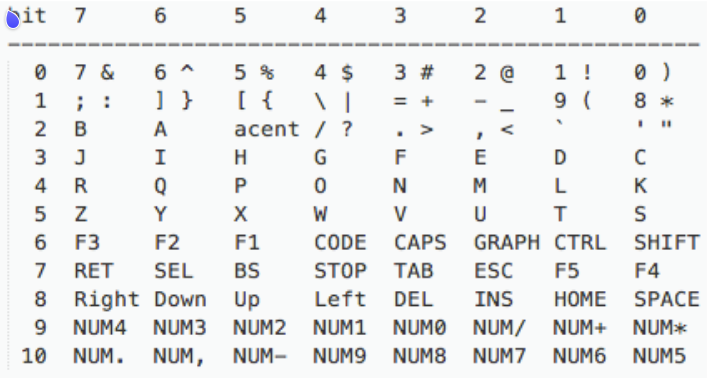
How does IS_KEY_PRESSED work? The MSX keyboard is encoded in a matrix as explained in this post on msx.org, according to the key we want to detect we have to find out which row it is in, for example, the R key is in row 4, and then we have to find out the bit that is deactivated when pressed. We read the matrix row with the Keyboard_Read command indicating as parameter the row number to read the keys, in this case it would be 4. Once we have the byte from the keyboard matrix, it is the first parameter of the IS_KEY_PRESSED function, the second is the byte to compare that MSXgl already has defined as constants and that in this case would be KEY_R which is defined in input.h. The following image has an example of this matrix extracted from FUSION-C-Quick A4 1.2.pdf page 42 where the columns are the bit and the rows are the number that must be passed to the Keyboard_Read function:
529void main()
530{
531	Bios_SetKeyClick(FALSE);
532
533	Game_SetState(State_Initialize);
534	Game_Start(VDP_MODE_GRAPHIC4, FALSE);
535
536	Bios_Exit(0);
And finally there is only the final function left, where we start by deactivating the noise that the keys make, we indicate that the initial state is in the State_Initialize function and that the main loop starts with Game_Start and the parameters of the screen mode to execute and if the refresh is 60Hz. When the state loop ends, we exit the application with Bios_Exit(0).
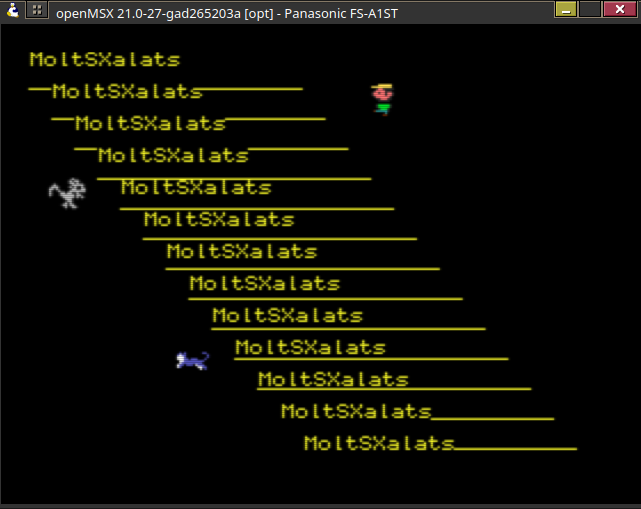
In this article we have seen how to animate different characters using the game/pawn module and controlling the main loop with game/state. We have not used the collision detection that is also found in this module.
As always you can find the code at MoltSXalats GitLab. And try the programa in WebMSX.
 |
| This work is licensed under a Creative Commons Attribution-NonCommercial 4.0 International License. |